From “who's picking up Leo?” to one shared plan
Four short steps. You can skip any of them and come back later. Nestday starts useful with just you and a calendar.
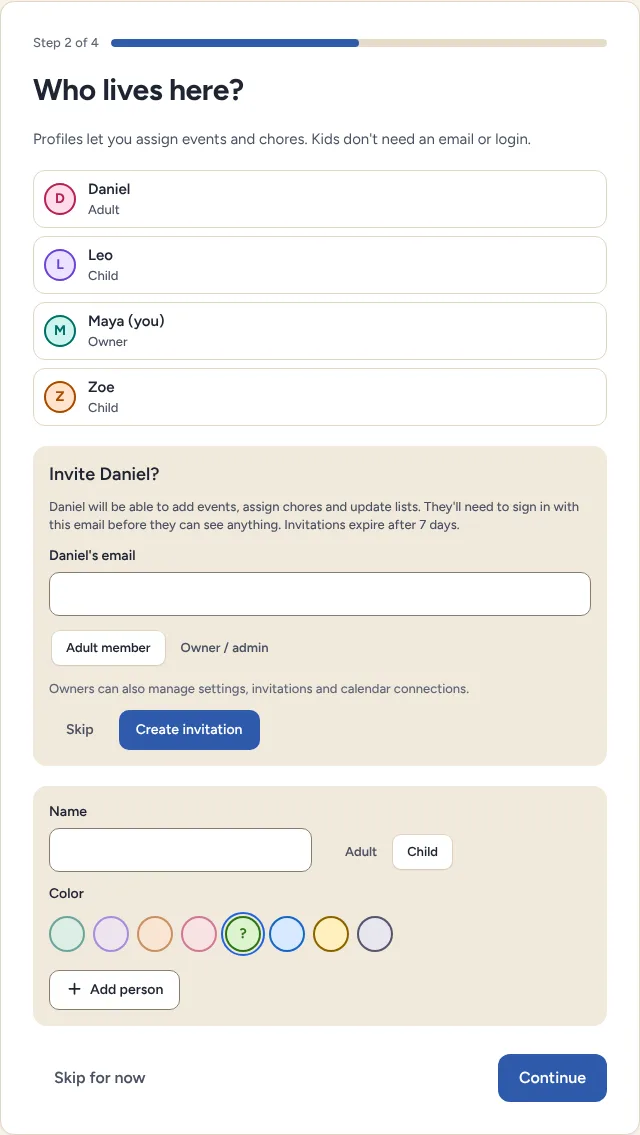
Step 1: Add the people you live with
Sign in with Google and name your household. Give everyone a color: children get a profile without an email address or password, and you decide what they can do.
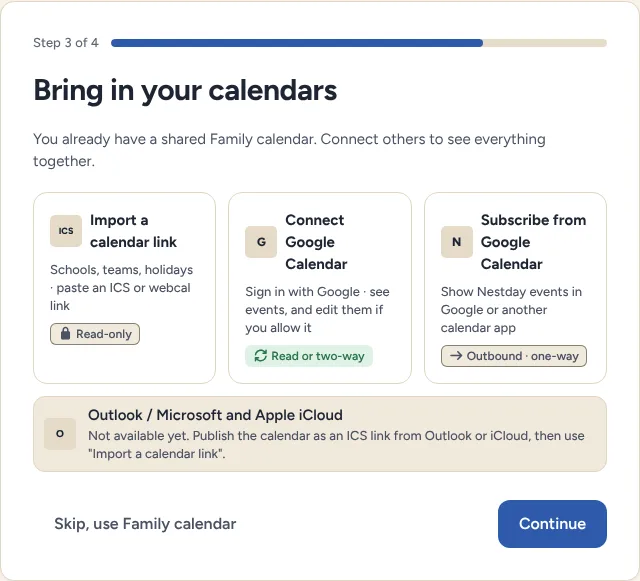
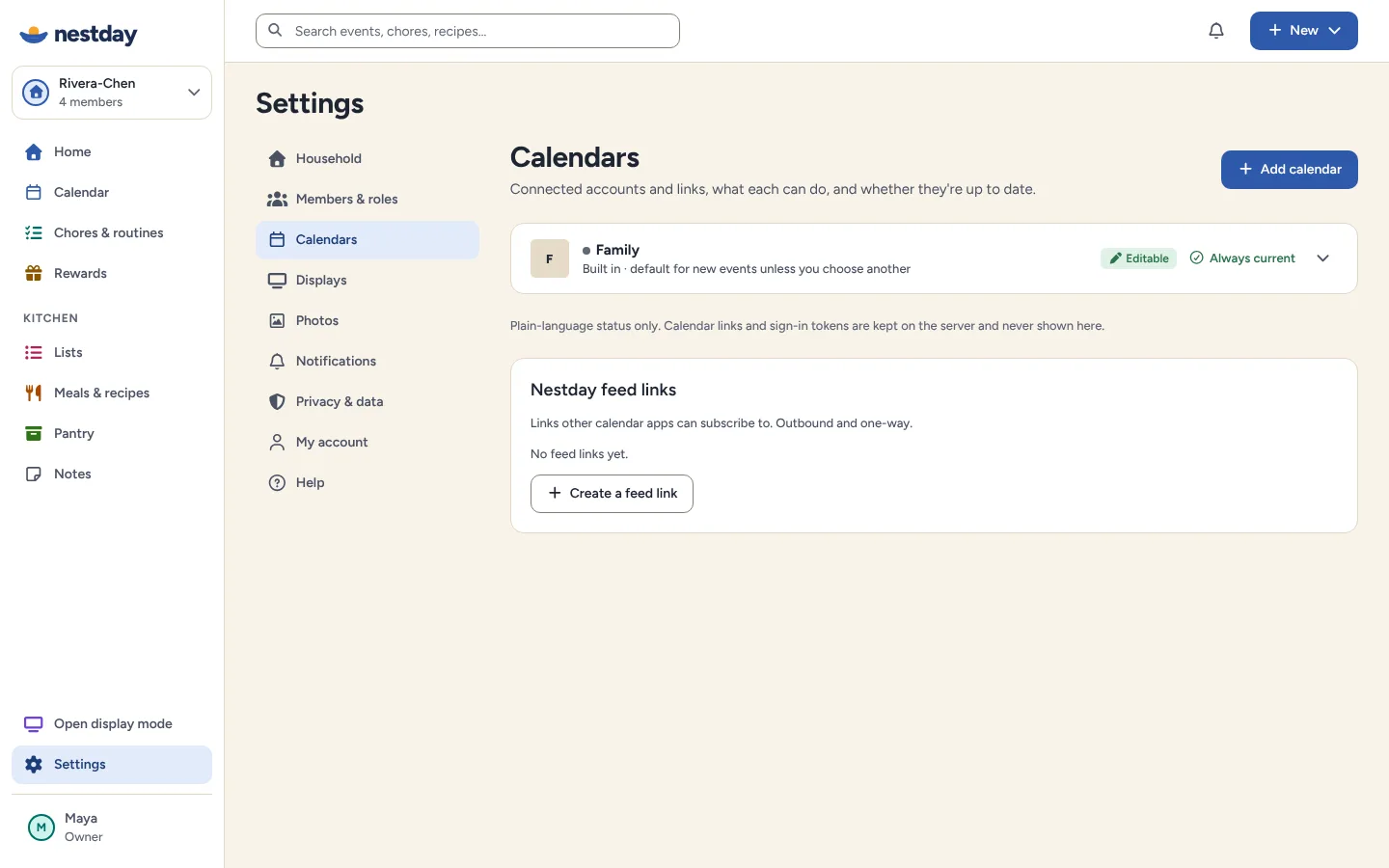
Step 2: Bring in your calendars
Start with the built-in family calendar, add calendar links from school, teams or other apps, or connect Google Calendar. Each source shows exactly what Nestday can do with it, so there are no surprises about what's editable.
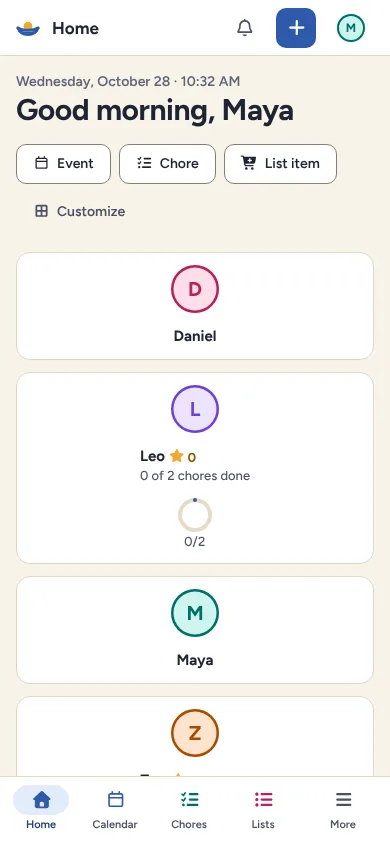
Step 3: Open it on every phone
Invite another adult with a link that works for 7 days and only for the email you enter. Nestday doesn't send emails yet, so you share the link yourself. Everyone sees today first: what's next and whose turn it is.
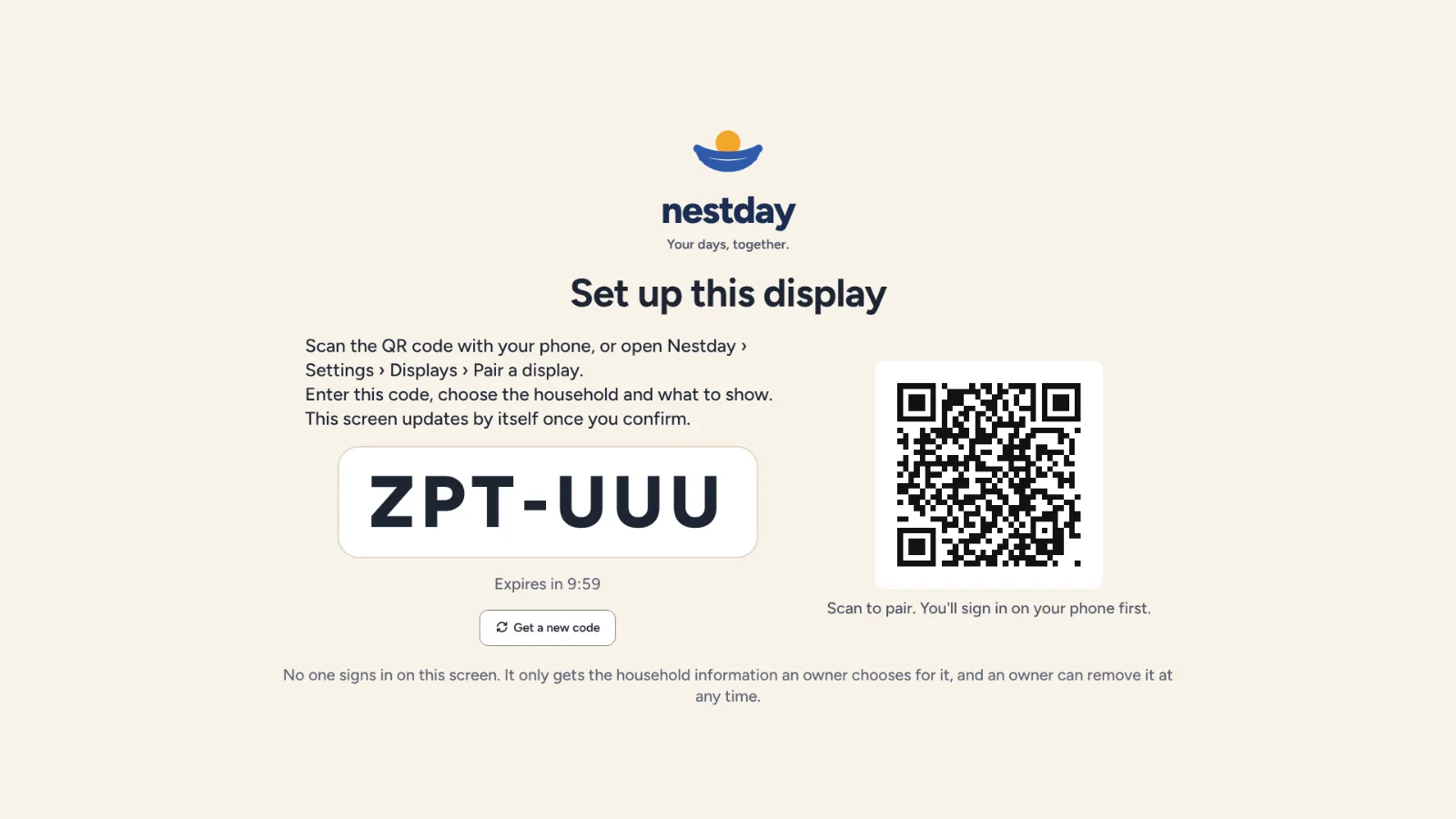
Step 4: Pair the kitchen screen
Open Nestday's display page on a tablet, monitor or TV browser, then scan its QR code or type its code on your phone. The screen never needs your password, and you can disconnect it any time.
Quietly there from breakfast to bedtime
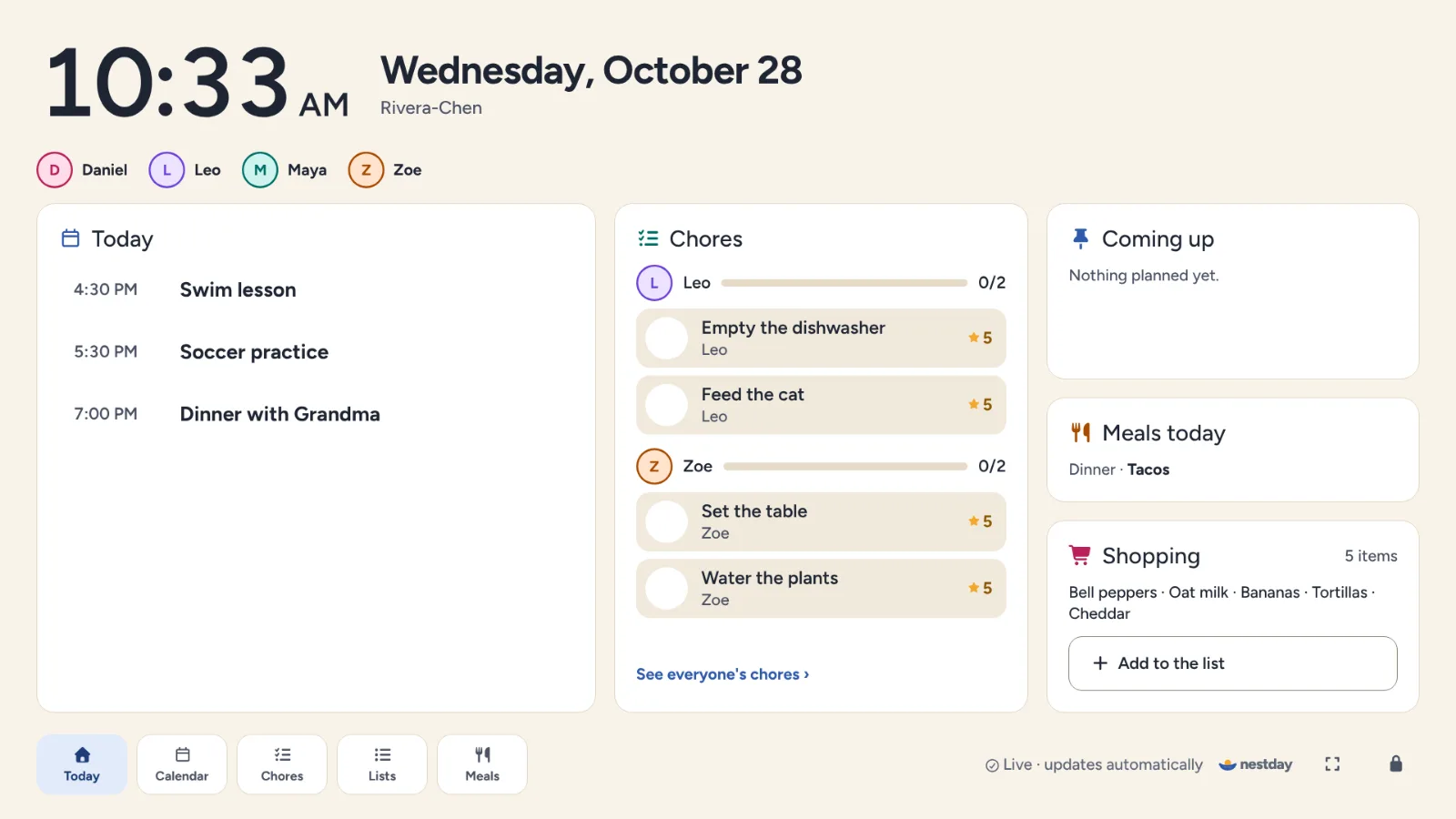 7:30 AM
Morning on the wall
Everyone sees who needs to be where, and the kids check off their morning chores.
- 3:00 PM
On the go
What's next on your phone, with the place already filled in.
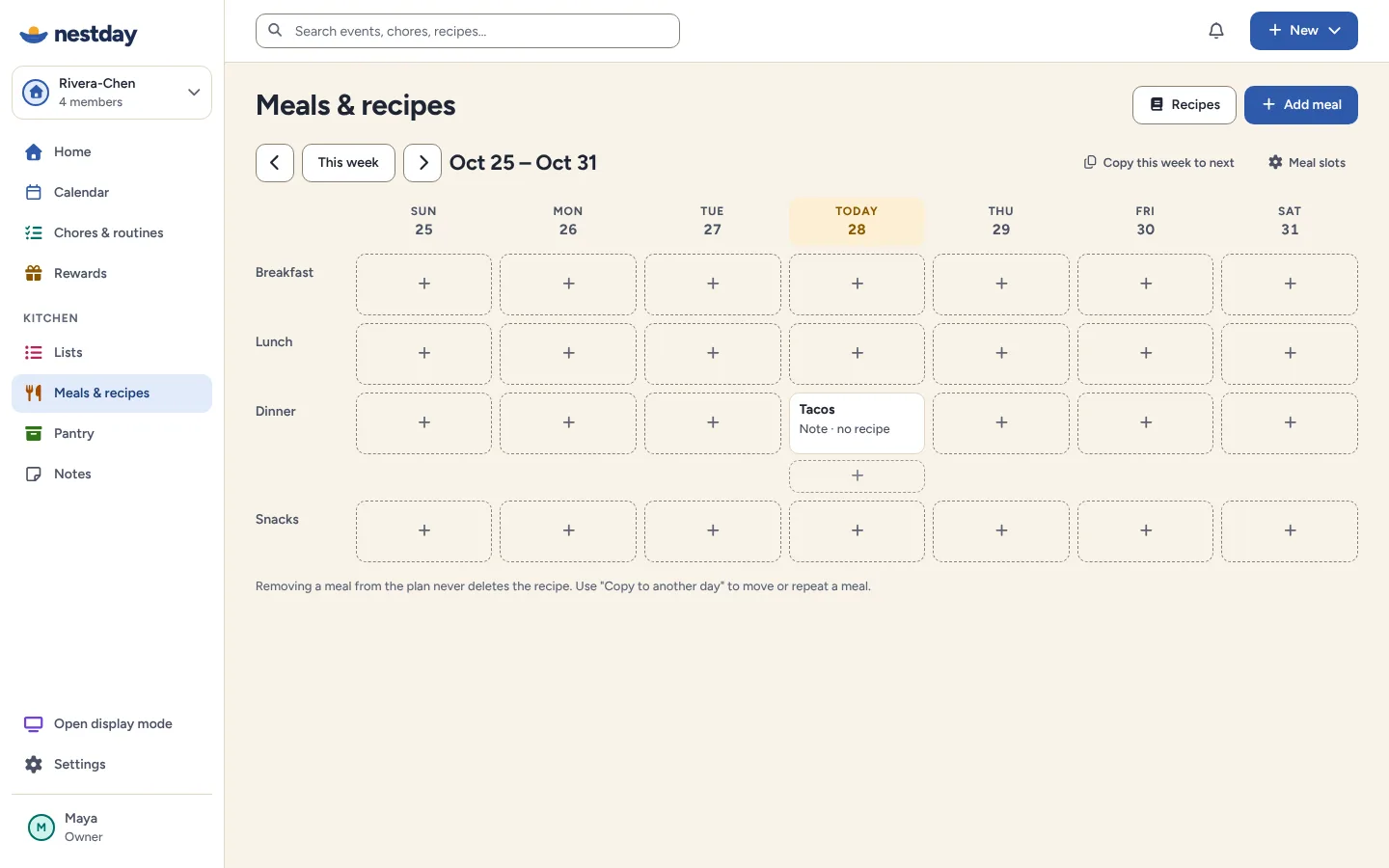 5:45 PM
Dinner's planned
Tonight's meal from the weekly plan, with the shopping list already sorted.
- 9:30 PM
Lights down
The display dims to a calm clock and a peek at tomorrow.
You'll always know if something needs attention
If a calendar stops syncing or needs you to sign in again, Nestday says so in plain words and shows when it last worked. Calendars that can only be read stay read-only, so nothing is changed by surprise.
Who can do what
Owners and admins
Everything, including members, calendar connections, displays and household settings.
Adults
Events, chores, lists, meals and reward approvals.
Children
Their own chores and rewards, shared lists and the family calendar, with private events shown as "Busy".
These permissions are checked by the server on every request, not just hidden on screen. More detail in Getting started.